
“Search proficiency” dictates research outcomes.
This is an undeniable reality.
Immediately after defining your research topic and formulating a plan, you face a significant challenge.

A vast ocean of literature.
“I cannot find the papers I need immediately.”
“Have I spent this much time on literature search without realizing it?”
“I am anxious about missing potential citations…”
This article introduces “literature search methods using AI” to resolve these concerns.
The tools introduced here are SciSpace, Paperguide, Elicit, Consensus, and Connected Papers.
- The search intent is conveyed more clearly.
- Target papers are easier to locate.
- It eliminates the labor of manually reading paper abstracts.
- The anxiety regarding missing citations is resolved.
The time required for literature search is drastically reduced, and search precision is visibly improved.

There is no reason not to utilize these tools.
Distinguishing Between AI Literature Search Tools

The author is an active researcher with over 10 years of experience.
I differentiate the use of AI tools as follows.
- For daily literature search: SciSpace, Paperguide
- For finding high-quality papers in critical moments: Elicit, Consensus
- For deep diving into related literature: Connected Papers
New tools are constantly emerging, but these five remain my most frequently used.
Literature search has obviously become much easier.
I will now introduce the search methodology I employ.
SciSpace for Daily Literature Search

The reason I use SciSpace on a daily basis is simple.
It is exceptionally excellent not only for literature search but also for reading support.
It’s incredibly convenient to be able to search the literature and immediately open the paper you find.
Moreover, it is equipped with numerous features designed for daily use by researchers, such as the Library function and writing tools.
There are plenty of reasons to use it.
Here’s what you can do with SciSpace’s literature search:
- Input a question in sentence format.
- Receive a summary with citations in response to the Question.
- View a list of insights and results for each paper.
- Ask follow-up questions for each paper.
- Perform even higher-performance literature searches with Deep Review.
Conducting a Search via a “Question”
First, let’s type the Question you want to search for on the SciSpace top page.
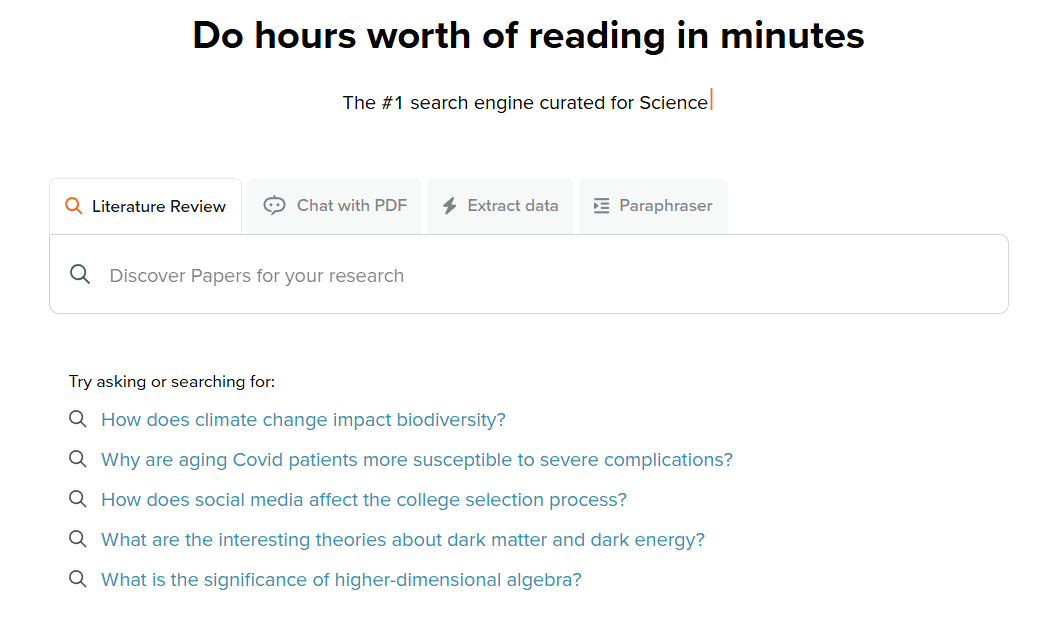
“How effective is radiotherapy for early-stage (stage I or II) lung cancer patients compared to surgery or chemotherapy?”
A rough Question like this is sufficient. Inputting in your native language is, of course, acceptable.
It is very easy because you simply need to include the keywords you want to cover within a sentence.
Tabulated Output Display
Now, let’s look at the actual output. Below is the output screen.
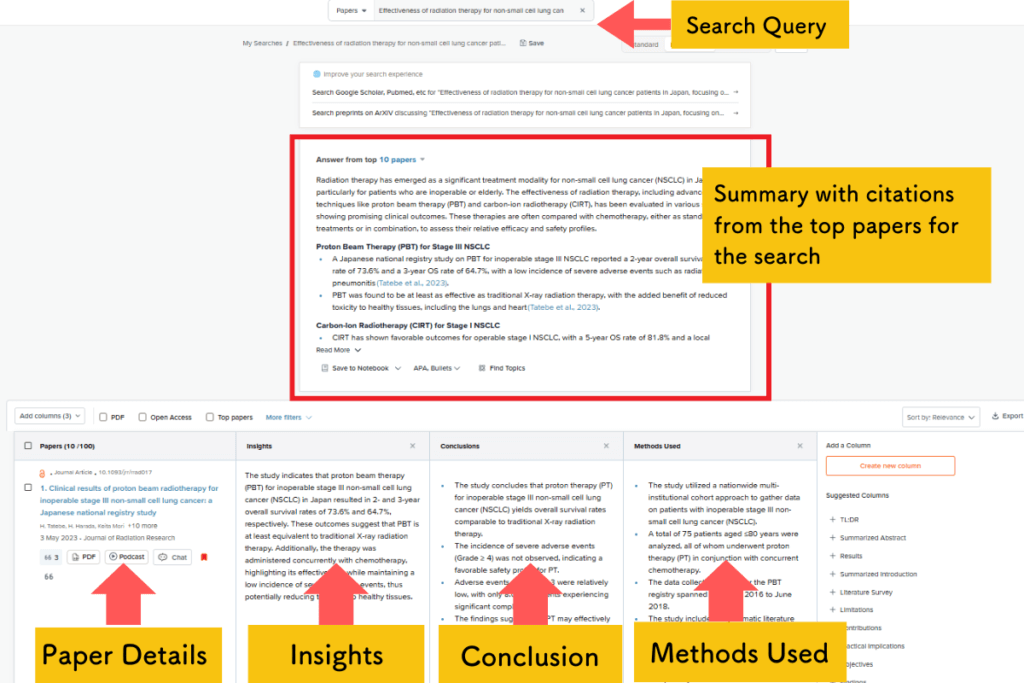
At the top of the output screen is a summary with citations.
At the bottom of the output screen is a list of information, insights, and conclusions for each paper.

Not only is the basic information of each paper displayed, but the content and insights are also tabulated.
Furthermore, everything is translated!
This level of output is generated in less than 30 seconds.
It is an astonishing speed. According to SciSpace, it retrieves literature from a database of over 200 million documents.
The Output Table is Editable
Even more conveniently, the table columns are selectable and can be edited as desired.

For example, you can add “Methodology” or “Limitations of the study”.
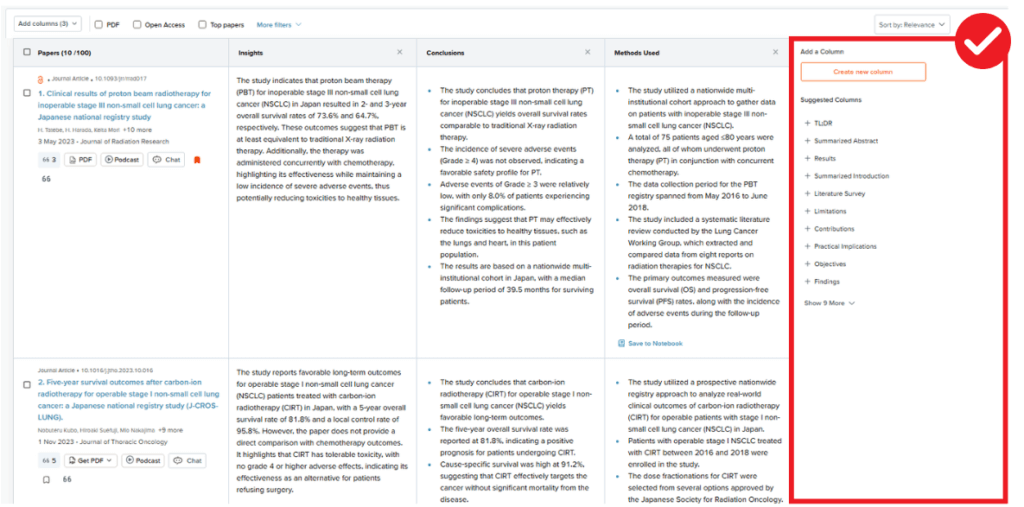
How convenient…
Furthermore, if you are interested in the details of a specific paper, you can ask the AI individual questions.
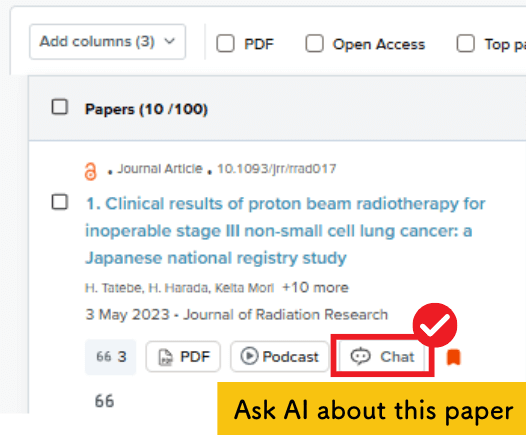

It eliminates the time wasted navigating to a literature page and reading the abstract, only to realize, “This isn’t what I was looking for!”
Organizing Papers in the Library
Next, you should import any interesting papers found during the literature search into the SciSpace Library.
By registering them in the Library, you can read the papers anytime using the SciSpace reading support function.
Below is the screen inside the Library. Not only paper information but also items such as results and methods (editable) are tabulated.
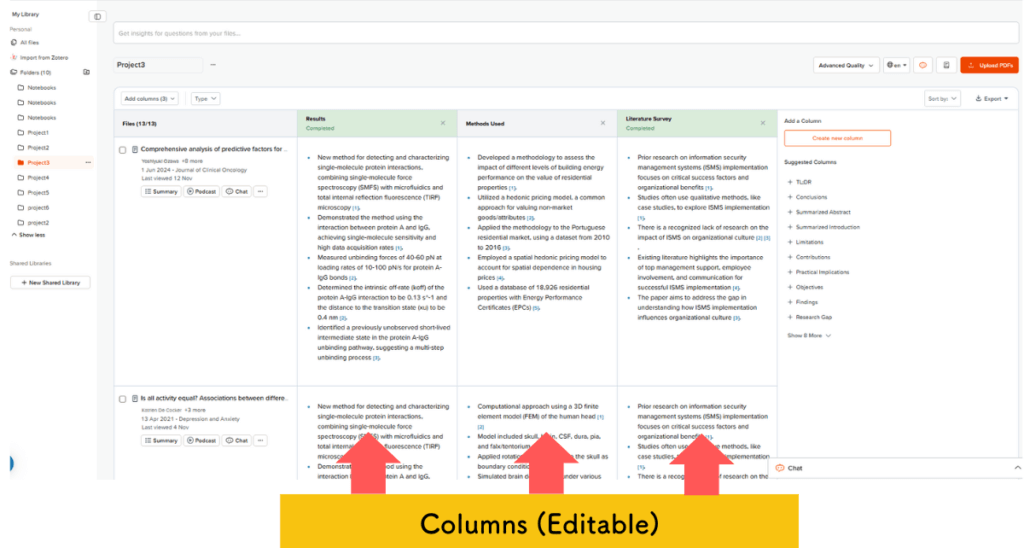
Looking at a list of bibliography titles in reference management software often leaves you wondering, “What was this paper about again?”
Having them listed like this is incredibly convenient.
Furthermore, SciSpace‘s “reading support” allows you to proceed through difficult papers at ultra-high speed.
While SciSpace is a highly recommended tool, there is one caveat.
Although it can be used for free, this is a tool that you should definitely upgrade to the paid version if you decide to use it.
I also use the paid version!
The reason is that because the AI quality is noticeably lower across features in the free plan.
However, you can use the paid version for only about $7.2 per month by using a coupon.
Deep Review Allows for High-Performance Literature Search
SciSpace is constantly evolving, and a new literature search feature, “Deep Review,” was added in February 2025.
If you search using Deep Review, you can conduct a search with even higher precision.
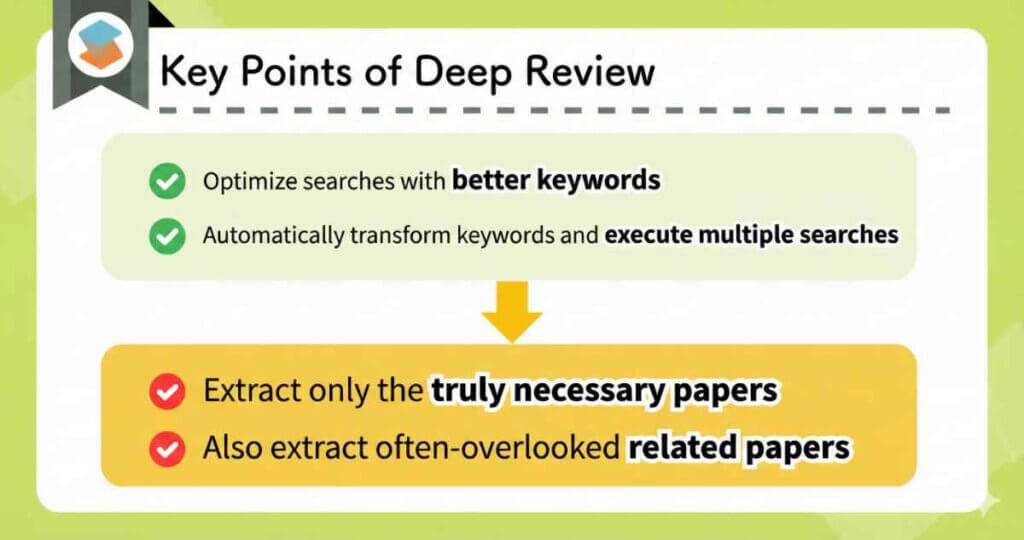
- Better keywords?
-
Before executing a search, use the chat to delve deeper into your search intent and optimize your keywords.
- Automatically extract related keywords and execute multiple searches?
-
It automatically extracts related keywords. Conducting multiple searches for each keyword significantly improves the search results.
To extract better keywords, the AI deep dives into the Question via chat.
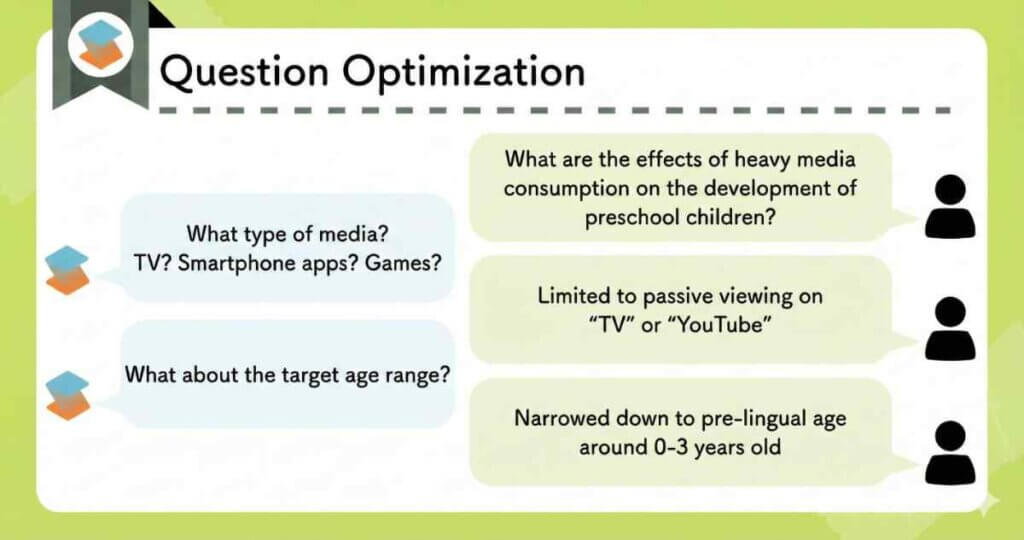
You may realize conditions you hadn’t considered through questions asked by the AI.
Furthermore, the AI automatically performs the task of “extracting related keywords to broaden the search scope.”
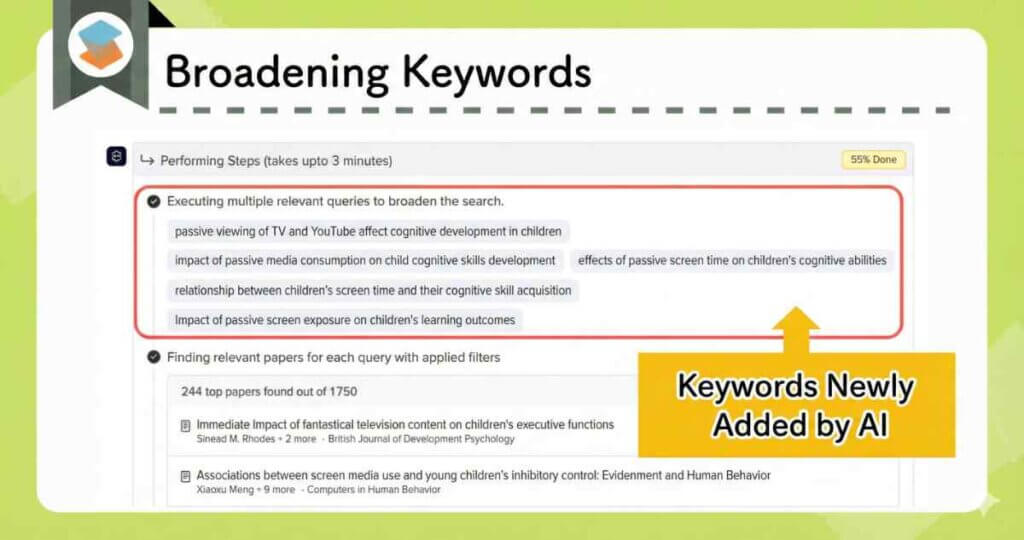
It executes multiple searches for each newly added keyword.
This prevents search omissions due to differences in phrasing.
In this way…
- Optimization of search keywords.
- Automatic conversion of keywords and simultaneous execution of multiple searches.
Deep Review achieves overwhelming search precision by adding these two points.
Actual Review
It is only available with the top-tier Advanced plan within SciSpace.
Details regarding Deep Review, including actual output examples and plans, are written in a separate explanatory article.
Besides this, SciSpace is packed with features such as writing support (AI writer and citation), reading support, and Podcasts.
It is truly an all-in-one tool for researchers.
Please read the explanatory article as well.
Details:
Official Site: SciSpace (https://typeset.io/)
Coupon Codes:
Annual Plan (40% OFF):
ATSAID40
Monthly Plan (20% OFF)
ATSAID20
SciSpace Explanatory Article: [Thorough Explanation] What are the benefits of using SciSpace? 5 Features and Pricing Plans Explained in Detail
SciSpace “Deep Review” Explanatory Article: [Must-See for Researchers] SciSpace’s “Deep Review” Dramatically Improves Literature Search Precision
Paperguide is Also Recommended for Daily Literature Search

Paperguide is a tool that has recently been gaining popularity among researchers.
It offers nearly equivalent features to SciSpace at a significantly lower price point.

With the arrival of Deep Research in June 2025, its performance has further improved.
Its focus on the AI writer feature also differentiates it from SciSpace!
Three types of literature search
Paperguide offers the following three types of literature search:
| AI Search | Literature Review | Deep Research |
|---|---|---|
| When you want to grasp an overview. | When you want to find papers. | When you want to find papers and create a detailed review based on them. |
In Deep Research, keyword optimization is first performed via chat.
(This aspect is similar to SciSpace.)
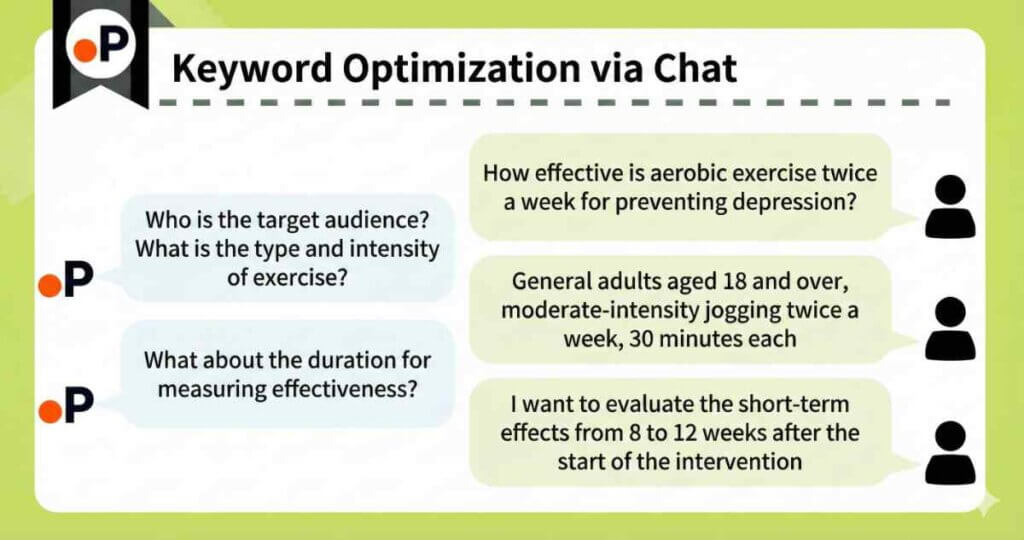
After the chat, the research question is significantly refined.
| Before | After (Generated by AI via chat) |
|---|---|
| How effective is aerobic exercise twice a week for preventing depression? | How effective is moderate jogging twice a week (30 minutes per session) for preventing depression based on self-reported depressive symptom scores (e.g., PHQ-9) in general adults aged 18 and older? (Focusing on randomized controlled trials, but also including observational studies.) |
Furthermore, Paperguide features a Controlled Deep Research mode, allowing users to add, modify, or delete the following points:
- Sub-questions (questions to broaden the search).
- Screening criteria for papers.
- Papers to select.
Users can intervene significantly to create the review. This is a point of difference from SciSpace’s Deep Review!
A detailed review like the one below is completed.
Paperguide allows the use of Deep Research even on the free plan.
Since there is a limit on the number of uses, the system requires upgrading the plan if you wish to use it more frequently.
Deep Research Usage Limits:
- Free Plan: Up to 2 times.
- Plus Plan: Up to 10 times.
- Pro Plan: Up to 50 times.
Comparing the price with SciSpace:
| SciSpace (Advanced Plan) | Paperguide (Free to Pro Plan) |
|---|---|
| $42/month (after using this site’s 40% discount coupon) | $0 – $19.2/month (after using this site’s 20% discount coupon) |
Moreover, Paperguide offers a student discount, providing 40% OFF.
The value for money is outstanding.
Literature searches other than Deep Research are also user-friendly.
Use AI Search when you want to know the overview in response to a research question.
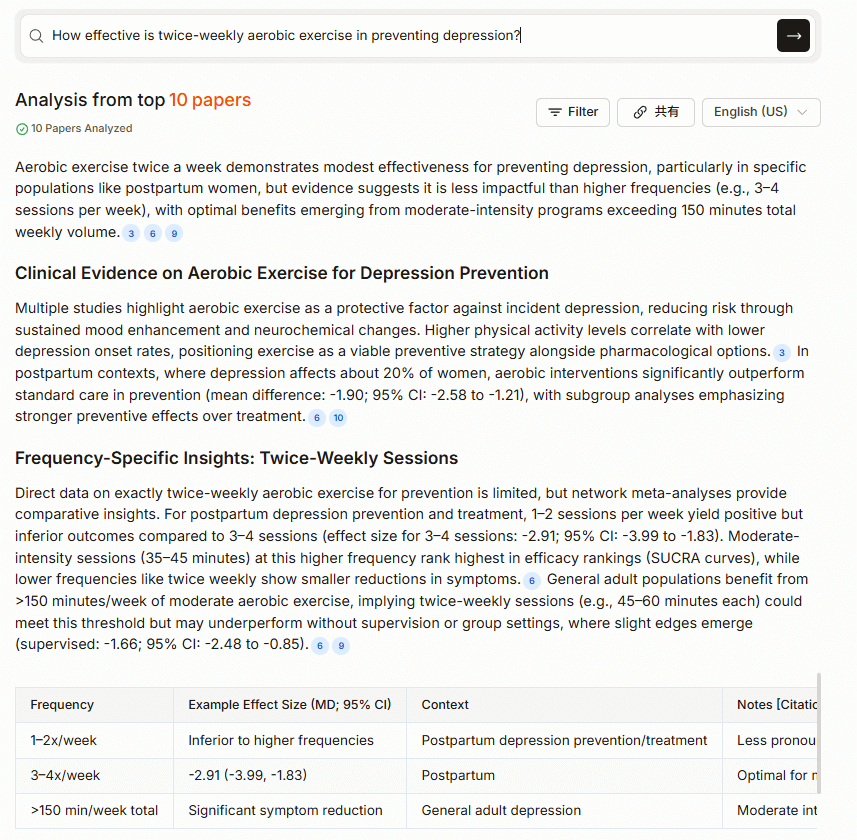
Use Literature Review when you want to find papers in response to a research question.
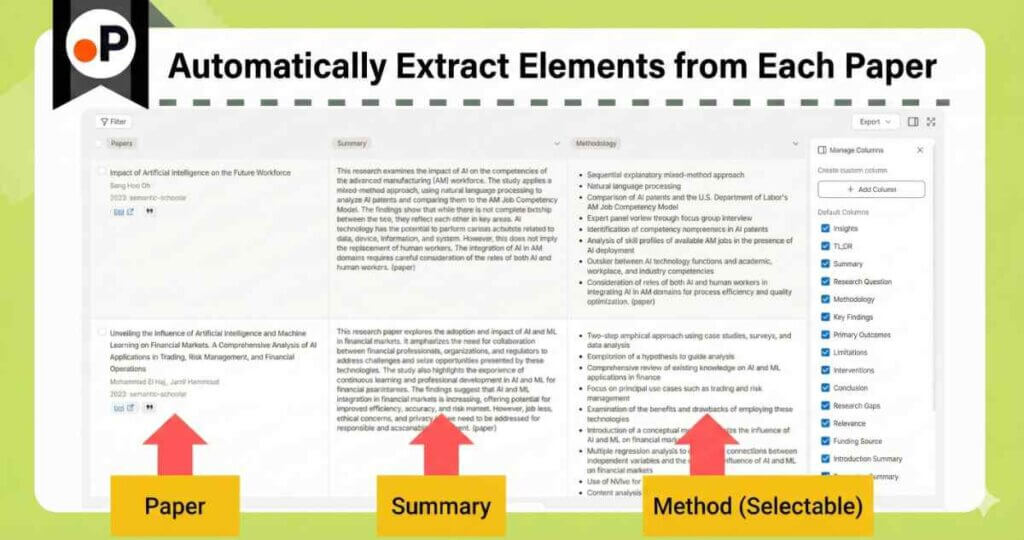
You can use them selectively depending on the situation at the time.
Besides this, it is positioned as a competitor tool to SciSpace as an all-in-one tool, including writing support (AI writer and citation), reading support, and library functions.
Please also take a look at the explanatory article on Paperguide.
Details:
Official Site: Paperguide (https://paperguide.ai/)
Coupon Code (20% OFF, annual and monthly): ACADEMIA20
Explanatory Article: What are Paperguide’s Features and Pricing? An Active Researcher Explains the AI Tool that Streamlines Academic Writing
Elicit for Comprehensive Literature Searches

It is particularly useful when you want to explore a new research area.
Elicit’s most compelling features
- Exploring new research areas with an agentic platform
- Automatically generating high-quality systematic reviews
- A table of papers that lets you jump directly to each cited passage
Exploring new research areas with an agentic platform
The new Elicit feature “Explore topics” is an agentic platform.
Here is what it can do.
- It can draw on not only academic papers but also many other sources of information.
- You can choose the output format and then refine the report through chat.
On the main screen, you enter your research question and choose an output format.
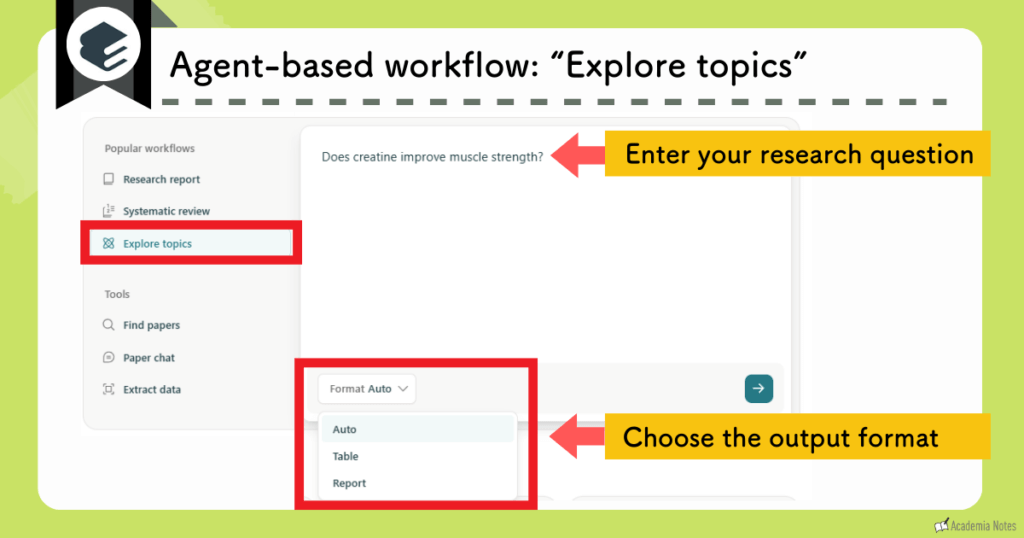
You then specify the direction of the output.
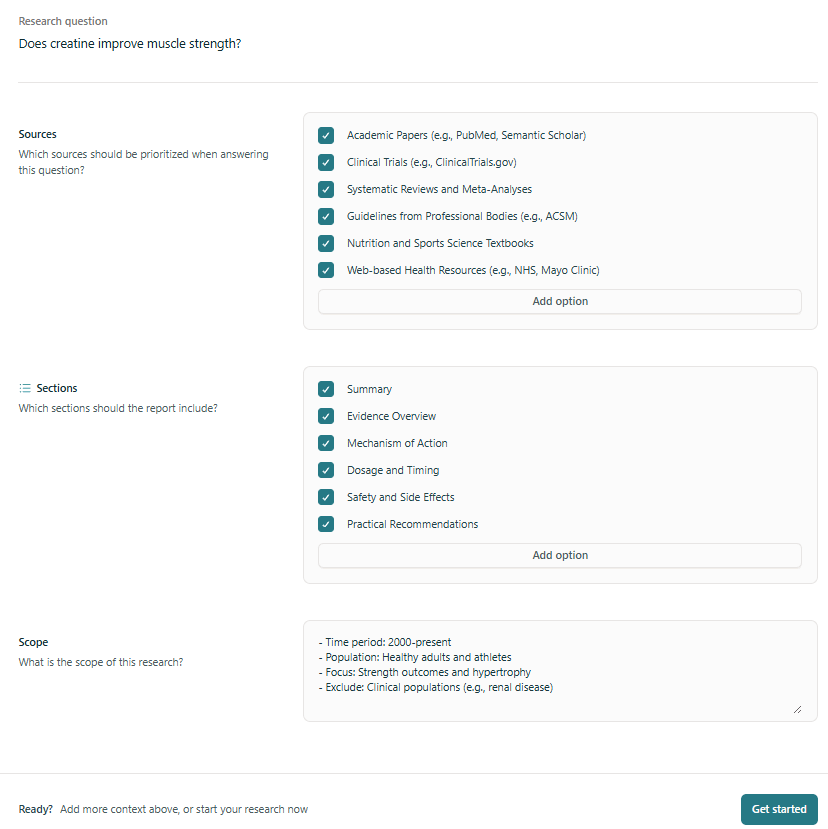
Selecting sources:
- Academic Papers: Primary research articles and review articles.
- Clinical Trials: Clinical trial registries such as ClinicalTrials.gov.
- Systematic Reviews and Meta-Analyses: Systematic reviews and meta-analyses.
- Guidelines: Society or organizational guidelines, useful when you want practical recommendations.
- Textbooks: Textbooks, useful for organizing background knowledge and mechanisms.
- Web-based Health Resources: Sources such as the NHS or Mayo Clinic.
Selecting sections:
You choose the structure of the report you want Elicit to generate.
- Summary: A concise summary of the main conclusions.
- Evidence Overview: An overview of the body of evidence.
- Mechanism of Action: Proposed mechanisms of action.
- Dosage and Timing: Dosage and timing of administration.
- Safety and Side Effects: Safety profile and adverse effects.
- Practical Recommendations: Practical recommendations for real-world practice.
Check the scope:
Elicit automatically sets the scope at the end, so you just need to review it.
- Time period: From 2000 to the present.
- Population: Healthy adults and athletes.
- Focus: Strength outcomes and muscle hypertrophy.
- Exclude: People with kidney disease and similar conditions.
Elicit then generates a detailed report.
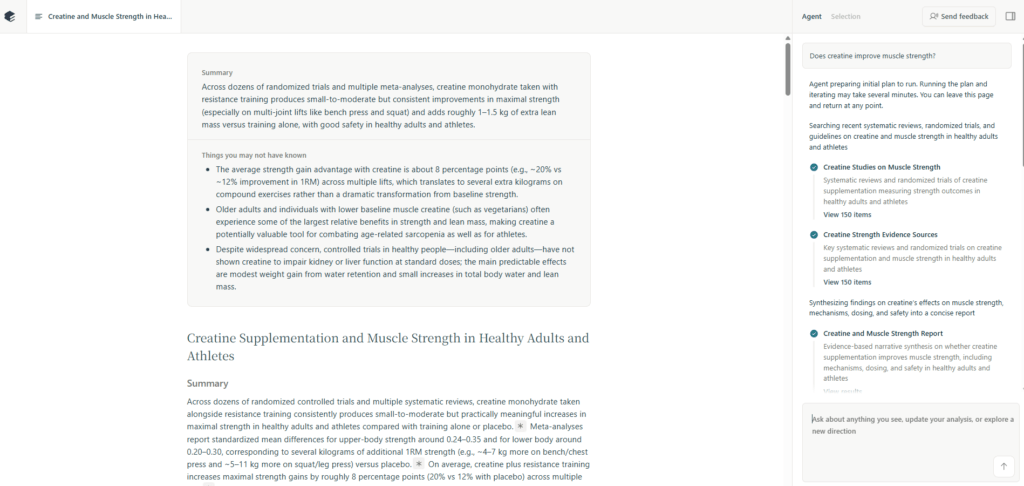
This is where the feature really shines: you can use the chat window in the bottom-right corner to request further deep dives.
Examples of follow-up deep dives:
- Narrow the scope (add conditions).
- Example: “Limit the population to women / older adults / beginners / advanced athletes and revise the conclusions.”
- Turn the results into a table so that you can compare studies.
- Example: “Summarize the key meta-analyses in a table with population, intervention dose, duration, primary outcomes, effect sizes, conclusions, and citations.”
- Make the numbers explicit (effect sizes and dose–response relationships).
- Example: “Summarize the effects on strength in kilograms, percentages, and SMD.”
- Surface counterarguments, limitations, and uncertainties in a more critical way.
- Example: “List the limitations and potential biases of this conclusion as bullet points.”
With previous AI tools, you typically got a one-shot output and had to rerun the search whenever you wanted to tweak it.
Elicit removes that friction and lets you iteratively refine the output while you review it, so you can extract information that better matches your research intent.
This feature is extremely useful when you are trying to break into a new research area.
Creating High-Quality Reviews with systematic reviews
To describe Elicit‘s systematic reviews in a nutshell, it is a feature where AI fully automates the major steps of a systematic review while allowing humans to adjust each stage.
The point is that the user can intervene.
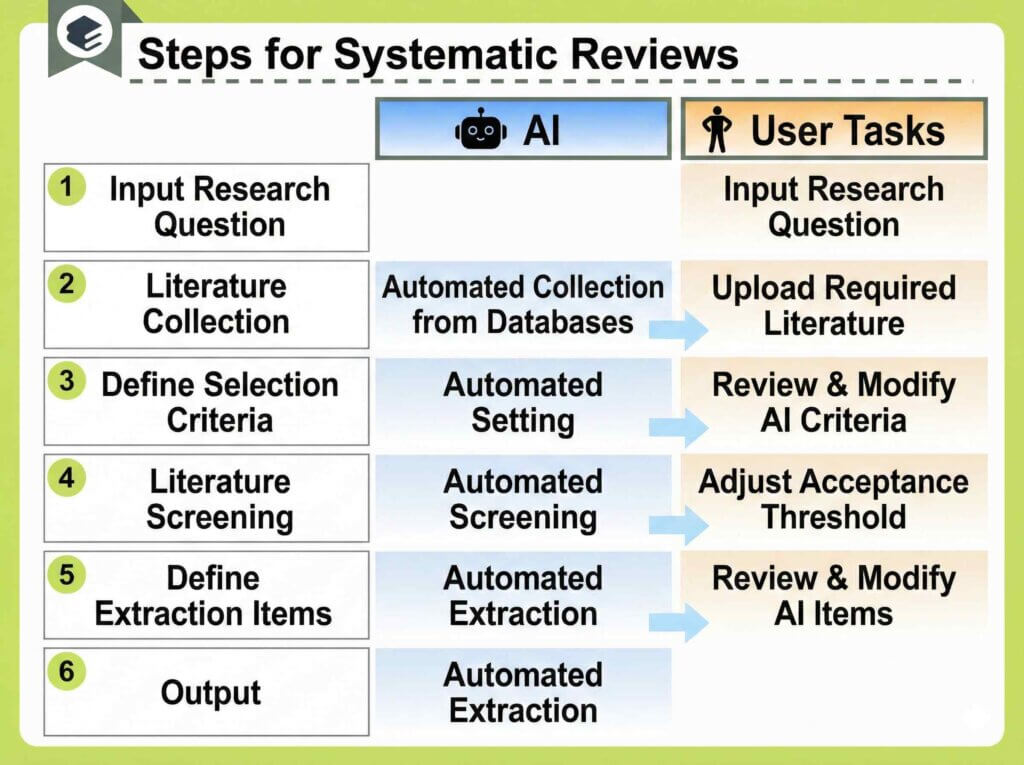
Here is an example of the kind of report Elicit can generate.

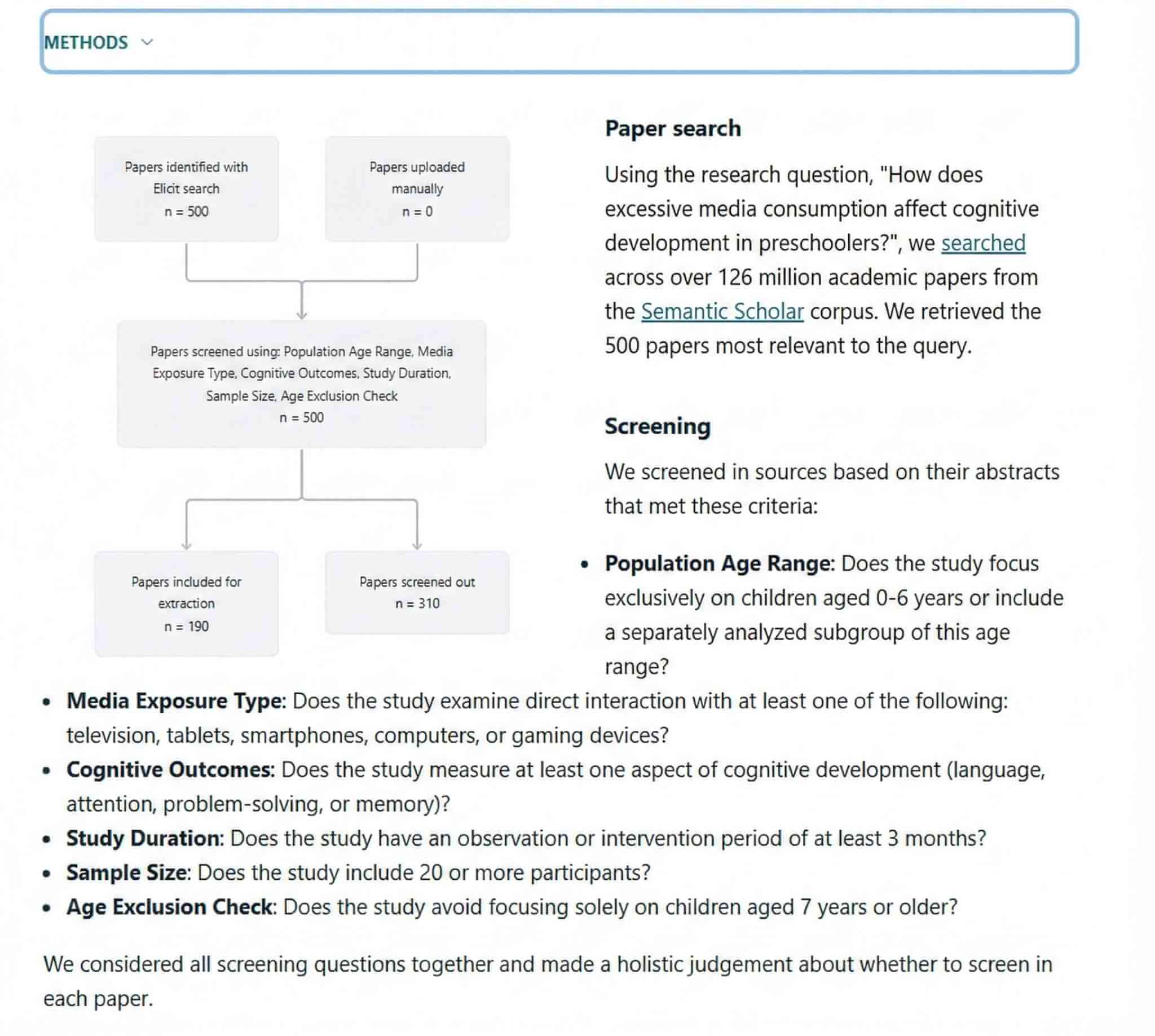
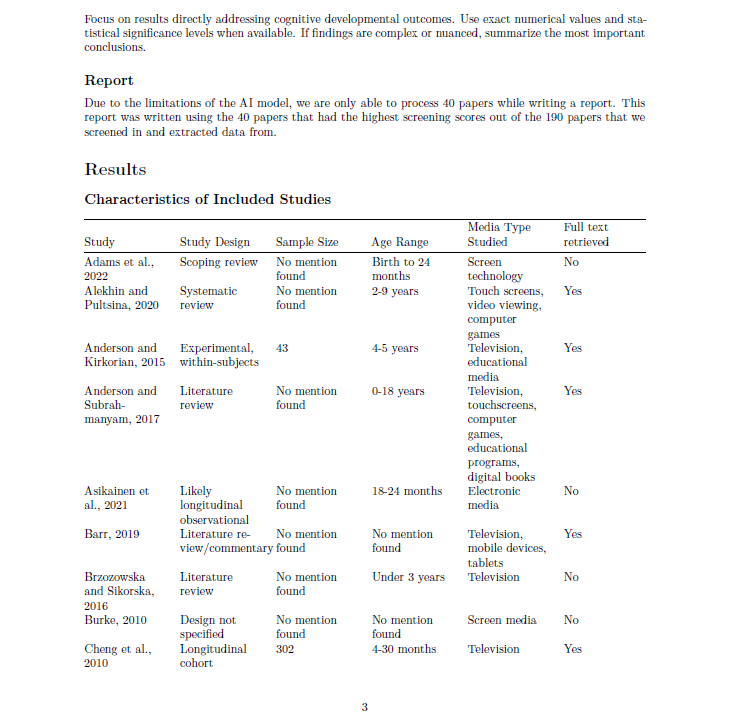
A review article created with reliable procedures is completed in a single workflow.
Honestly, the performance far exceeded my expectations.
Table of papers with jump-to-citation links
The paper search result screen is also tabulated and very easy to view.
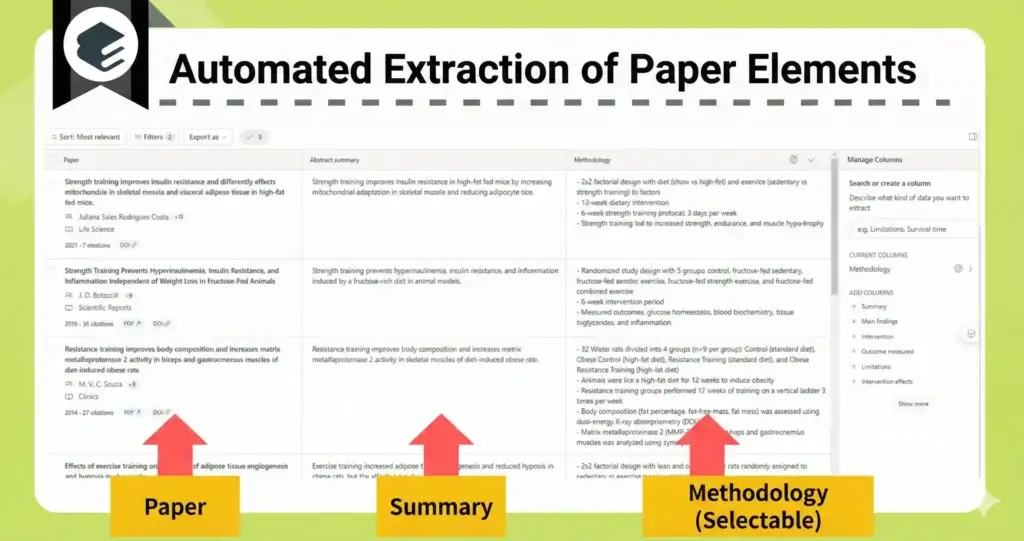
The specifications in this regard are the same as SciSpace.
The point where this table is superior to SciSpace is that clicking on an extracted sentence navigates you to the corresponding section of the full text.
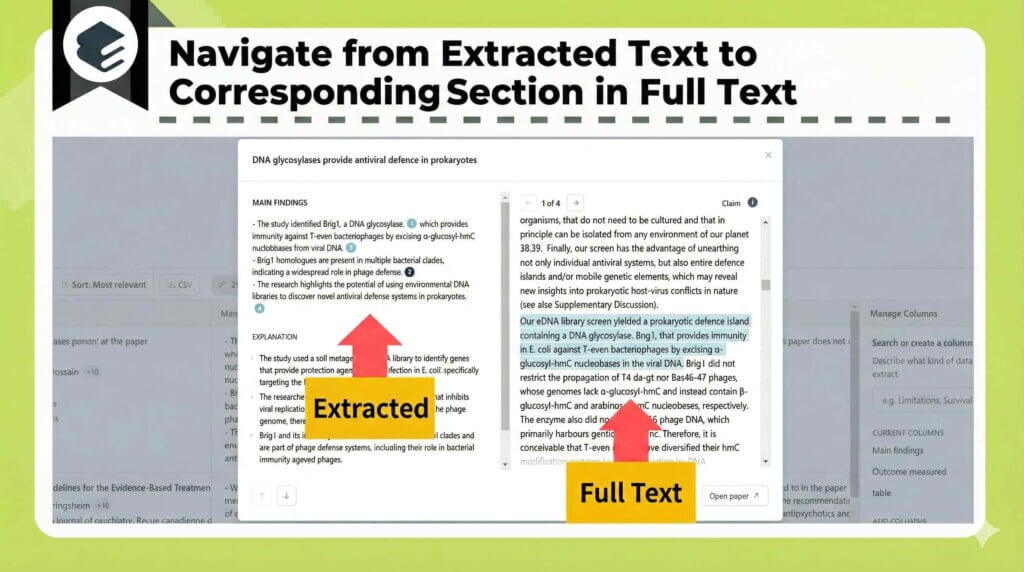
When you turn on the high-precision mode of the paid plan, each extracted sentence is numbered, allowing you to check the cited parts in detail.
You should definitely set the high-precision mode for important items.
Elicit is a tool that can be used continuously even with the free plan.
The recommended timing to upgrade to a paid plan is “when you want to increase the use of high-precision mode.”
First, please try it within the free range.
The differences in plans are described in detail in the following article.
Details:
Official Site: Elicit (https://elicit.com/)
Explanatory Article: [Thorough Explanation] What are the Benefits and Pricing of Using Elicit? A Detailed Explanation of the AI Tool for Streamlining Literature Search
Consensus for Finding High-Quality Papers in Critical Moments

The literature search capabilities of Consensus are gaining momentum, surpassing even SciSpace and Elicit.
What you can achieve with Consensus literature search is as follows.
- Input search queries in natural language format (questions answerable with Yes/No are particularly recommended).
- A summary with citations is displayed in response to the search.
- Select papers by reviewing the labels aligned in the search results.
- Refining searches using filtering is also highly flexible.
Three “Question” Methods Recommended for High-Quality Search
Consensus has an established reputation for screening and displaying “high-quality” papers.
Consensus explicitly states the recommended search methods as follows.
- Questions regarding the relationship between concepts.
(e.g., “Does creatine improve cognition?”) - Questions that can be answered with “Yes/No”.
(e.g., “Can zinc supplements improve depression?”) - Questions regarding the effects of a certain concept. (e.g., “What are the economic impacts of immigration?”)
The author’s recommendation is to search questions that can be answered with “Yes/No”.
For example, let’s toss in a simple question like this.
“Does creatine improve muscle strength?”
Output Includes Summaries and the Consensus Meter
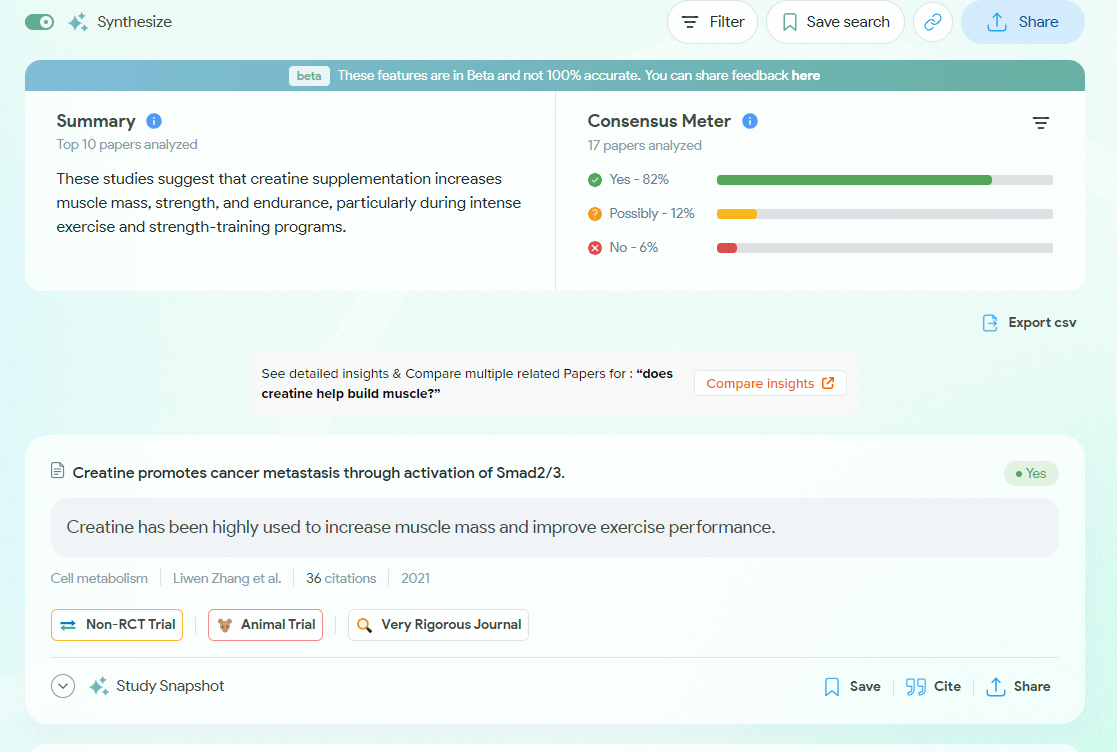
There is a summary on the top left, the Consensus Meter on the top right, and the search results for each paper below.
Having a summary attached has become a standard feature in AI search.
What is truly novel here is the one-of-a-kind feature called the Consensus Meter.
It aggregates the results of top-ranking papers and generates a graph like this.
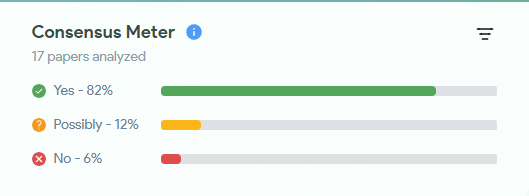
It’s pretty incredible, isn’t it? When entering a new field or establishing a new experimental system, questions like“What is the mainstream opinion on this question?” are resolved instantly!
Research Content is Clear at a Glance with Abundant Labels
Additionally, Consensus features extremely rich labeling functions, making it excellent for easily understanding the quality and overview of research on the search screen.
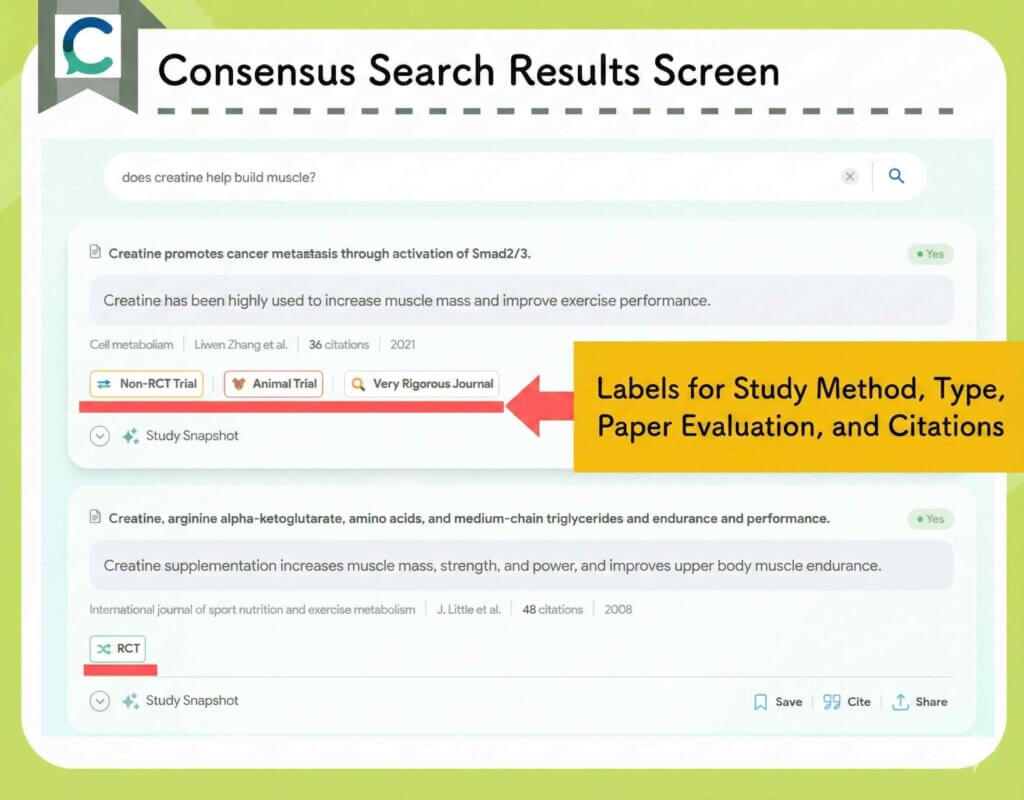
Types of Labels:
- Evaluation of the study: “Rigorous Journal”, “Very Rigorous Journal”.
- Citation count: “Highly Cited”.
- Study Design: “RCT”, “Non-RCT Trial”, “Case Report”, etc.
- Clinical research or basic research: “Animal Trial”, etc.
It is incredibly easy to locate papers when these labels are present.
User-Friendly Filtering Functionality
Furthermore, the filtering functionality in Consensus is also user-friendly. An example is shown in the figure below.
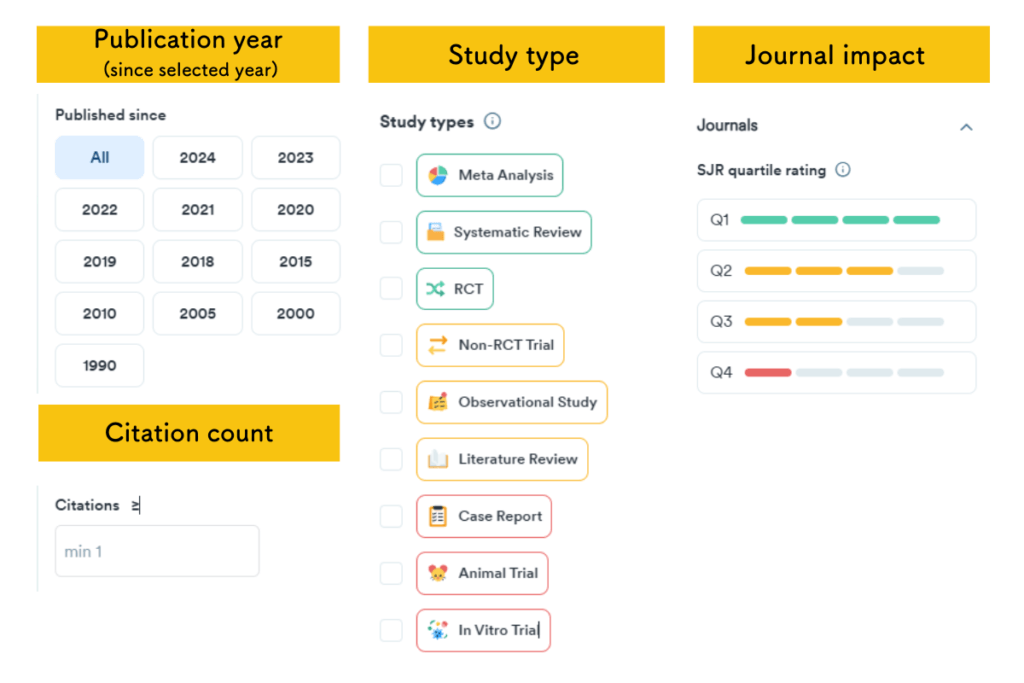
Let’s make extensive use of this filter function to narrow down the papers thoroughly. You will certainly find the “perfect” paper.
Consensus allows you to utilize high-quality AI even for free.
However, usage limits are attached to its use.
If you actually use it and find yourself constantly hitting the usage limit, please consider switching to the paid version.
Monthly plans start from $10, and there are also limited-time campaigns and student discounts.
At present, I use it within the range of the free version.
Details:
Official Site: Consensus (https://consensus.app/search/)
Explanatory Article:
Connected Papers for Deep Diving into Related Literature

Connected Papers is an AI literature search tool that is completely different from SciSpace and Consensus!
This tool is truly amazing.
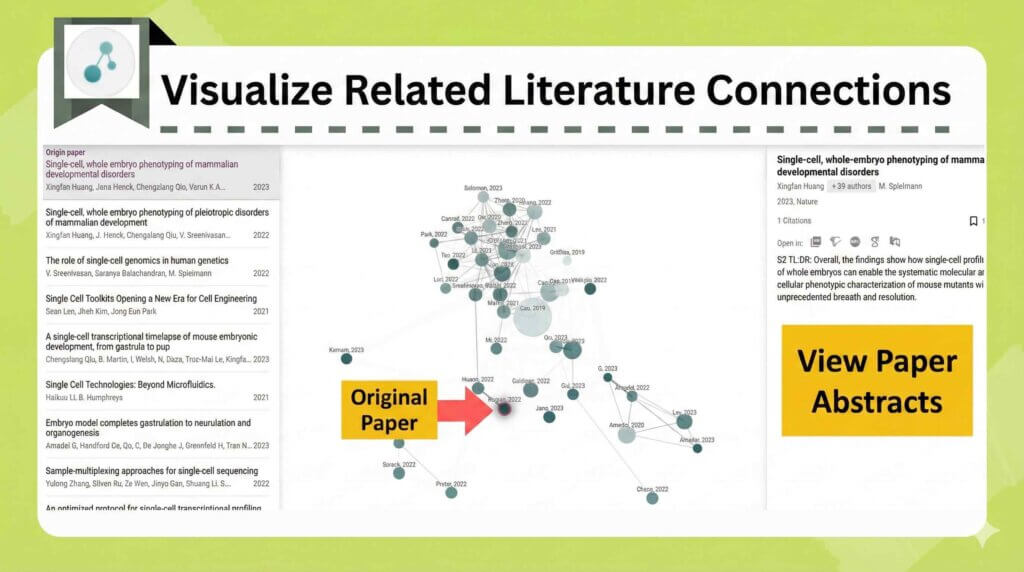
- It visualizes related literature in a network.
- The distance between circles represents the depth of the relationship.
- The size of the circle represents the number of citations.
In the past, we performed the daunting task of manually tracing references to avoid missing citations.
Even after spending considerable time, we sometimes missed important papers.
In the modern era, Connected apers completes this instantly!
First, upload a paper from the top page.
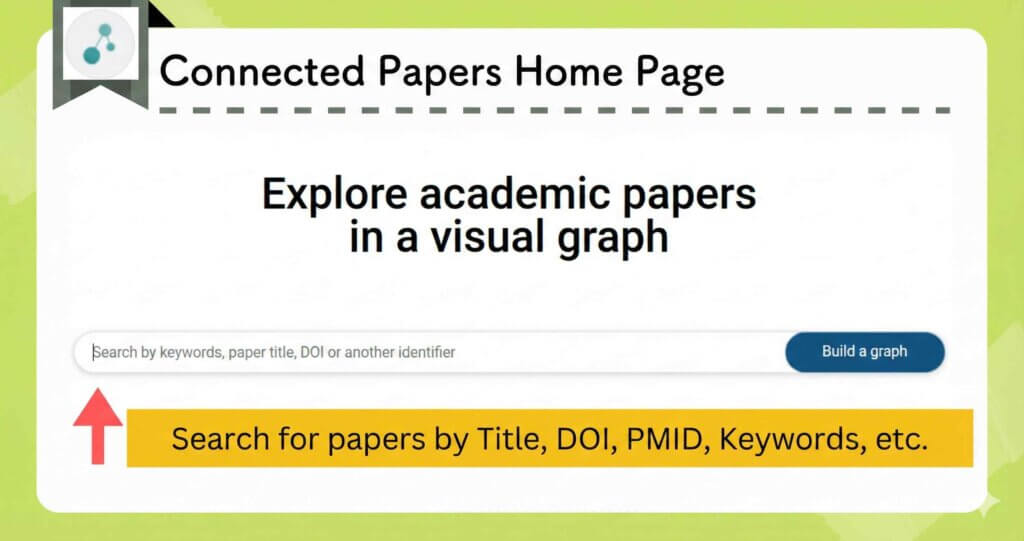
It visualizes related papers centering on the original paper.
The distance of the circles represents the depth of the relationship, and the size represents the number of citations.
If you have failed to cite a large circle, please check it immediately.
You can also view details in a list format.
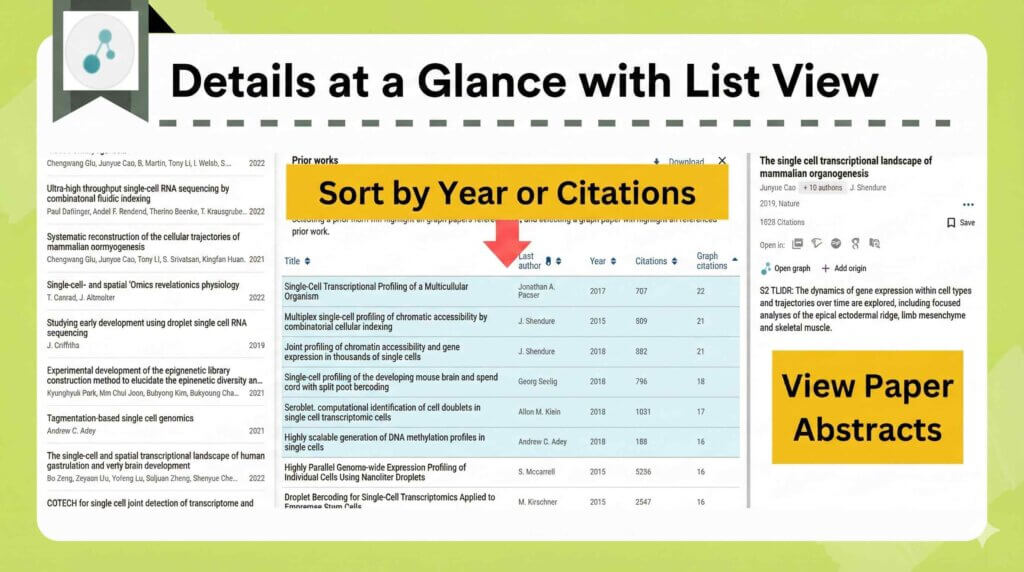
It is quite similar to Research Rabbit.
A slight difference is that the distance between circles does not hold meaning in Research Rabbit.
Furthermore, Connected apers allows the creation of up to five graphs per month for free.
If you wish to create more graphs, the annual plan costs around $5 per month.
Details:
Official Site: Connected apers (https://www.connectedpapers.com/)
Explanatory Article: [What is Connected Papers?] An Active Researcher Explains 7 Recommended Features and Pricing Plans
Summary
In this article, I summarized ways to use AI tools to save time on literature search.
Literature Search Tools:
Thank you for reading to the end.
I share updates on new posts on X and Instagram.
Please follow me to stay updated!
A Request
Thank you for reading.
This is a personal blog that I update little by little in my spare time.
If you found this content helpful, I would appreciate it if you could share your thoughts on social media.
Your feedback encourages me to keep creating new articles.